FeaturesPractice tablets AdminCore
Practice tablets for check‑in, forms and consent.
Pair an iPad or Android tablet in Lumina Admin, and patients check themselves in, fill in their medical history and sign consent at reception or chairside.
The Lumina practice tablet app is Pulp Flow on the App Store and Google Play
Hand the tablet to the patient.
Send the medical history, consent or sign-off from the patient's record to a named tablet, and watch it move from On the tablet to Opened to Submitted.
- 1.1Consent always matches the treatmentThe patient reads each treatment with its tooth, price, risks and your terms. If the treatment changes after you send it, the tablet refuses the signature.
- 1.2Parents, guardians and GillickChoose who signs: the patient, a parent or guardian, or a patient aged 13 to 15 with your Gillick tick.
- 1.3A link when the tablet is awayIf no tablet is online or the form has not arrived, resend it or text or email the patient a link instead.
Patients check themselves in.
Patients enter their name and date of birth at the reception kiosk, their status turns to Waiting in Core, and the day list and arrival chime update live.
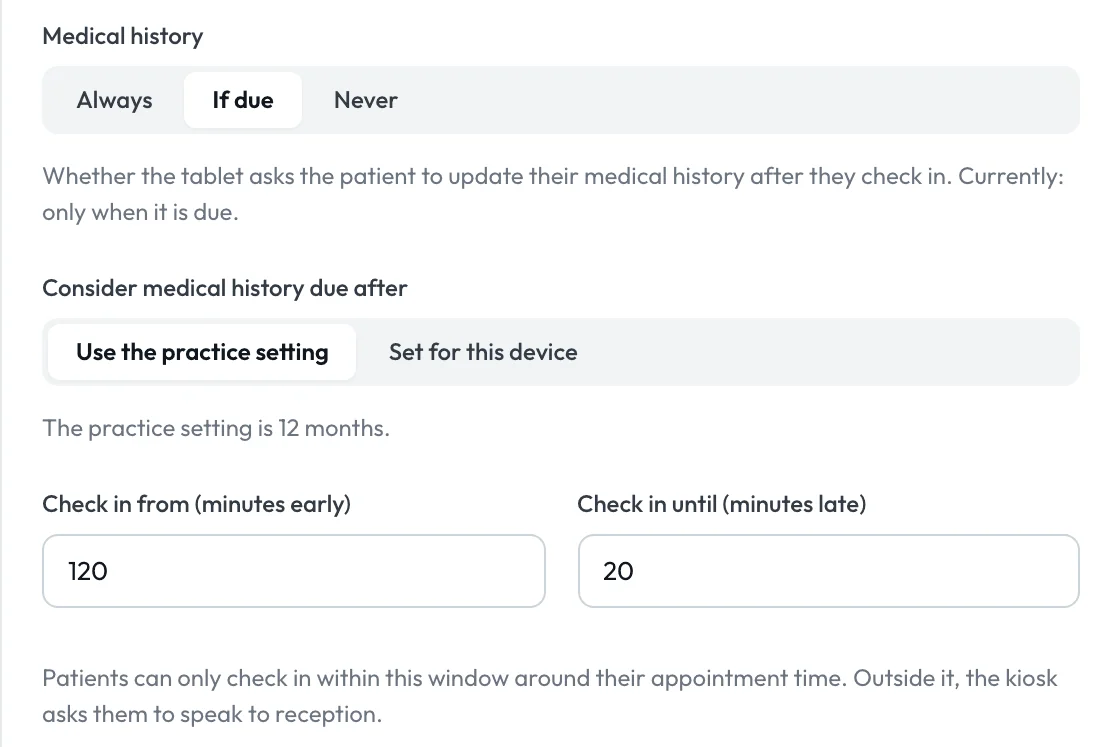
- 2.1Medical history while they waitAsk every patient, only when their history is due, or never. The due period runs from 1 to 24 months.
- 2.2A check-in windowSet how early and how late patients can check in. Outside it, or with no appointment found, the kiosk sends them to reception.
- 2.3Your welcome messageAdd a welcome line of up to 80 characters. The kiosk shows adverts while it is idle.
Your own adverts on the tablet.
Make adverts with AI in the Ads app, put up to 10 in a slideshow, and your waiting-room tablets play it whenever no patient is using them.
- 3.1Adverts written by AIDescribe your offer, treatment or colours in a sentence and the AI designs the advert, then changes it as you chat.
- 3.2One slideshow or one per tabletSet a slideshow for the whole practice, give one tablet its own, or turn adverts off on a single tablet.
- 3.3Your timing and framingEach picture shows for 8 seconds, or as few as 3, and either fills the screen or fits whole.
- 3.4Changes reach the tablet by themselvesEdit a slideshow and paired tablets update within seconds, with no visit to reception.
Only tablets you confirm.
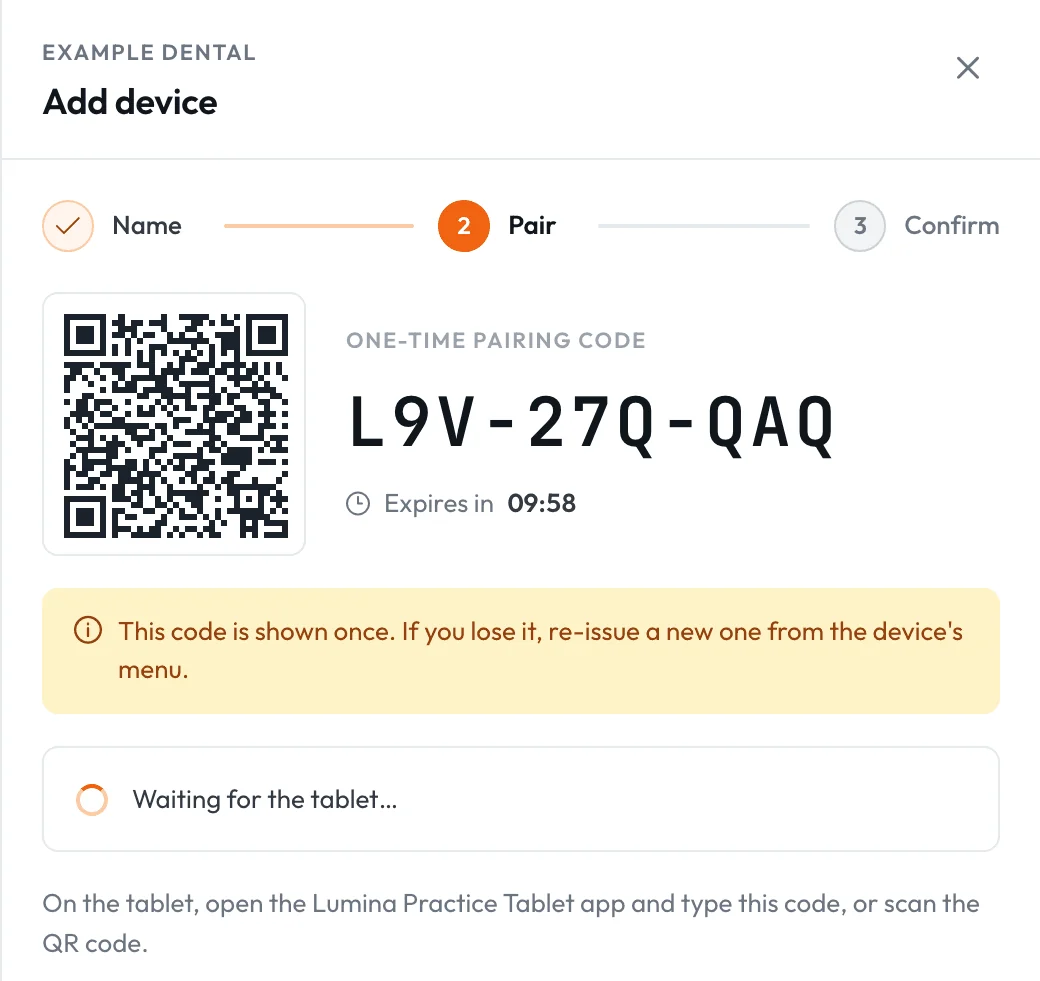
Pair with a one-time code or QR code that expires in 10 minutes, then confirm the tablet's model before it does anything, and Revoke cuts a tablet off at once.
- 4.1No patient records on the tabletThe app keeps only its own sign-in key and display settings. A half-finished check-in clears itself after a minute.
- 4.2Every tablet on one pageDevices lists the tablets at every practice, with which are online now and when each was last seen.
- 4.3A lock-down guide for your IT supplierOur guide covers Guided Access, app pinning and device management. Locking the tablet itself stays with your practice.
Answers land in the record.
Medical history
Answers from the tablet come back for a clinician to review and approve, with what changed since last time.
Medical historyThe day list
Every patient starts the day Off site. Kiosk check-in sets Waiting for you.
Diary and bookingsOr from home
Patients can complete the same medical history and consent in Lumina Portal before they arrive.
Lumina PortalPut a tablet on the front desk.
The practice tablet app comes with Growing Practice and above. Pair your first tablet in Lumina Admin in about ten minutes.