
FeaturesX-rays and imaging CorePortal
X-rays, photos and 3D scans on the patient record.
Compare four X-rays side by side, sharpen with Caries or Bone level presets, sign structured reports, and view 3D scans that patients can turn on their own phone.

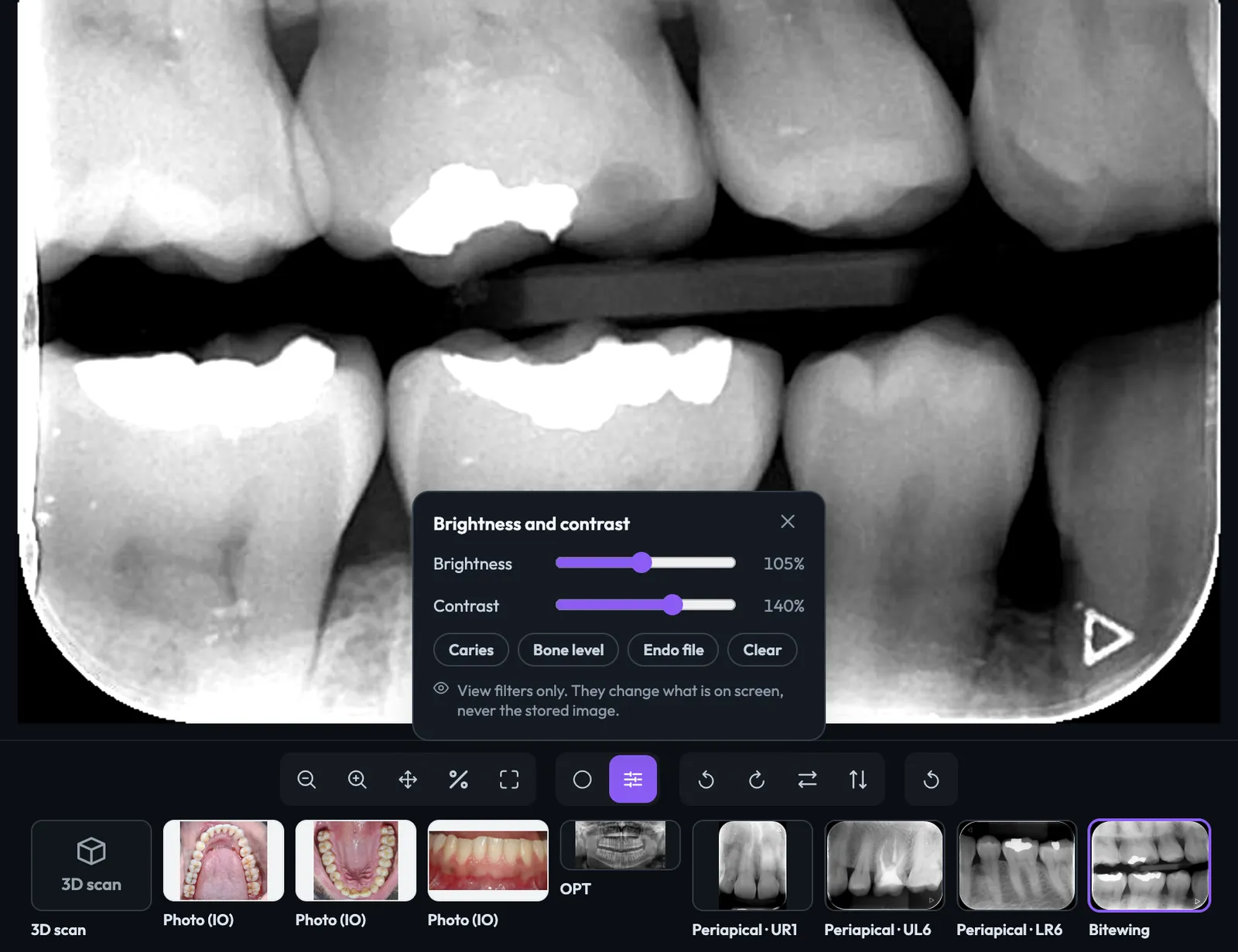
Look closer without changing the original.
Zoom to a region, invert, rotate, flip and adjust brightness, or tap Caries, Bone level or Endo file, and the stored image never changes.
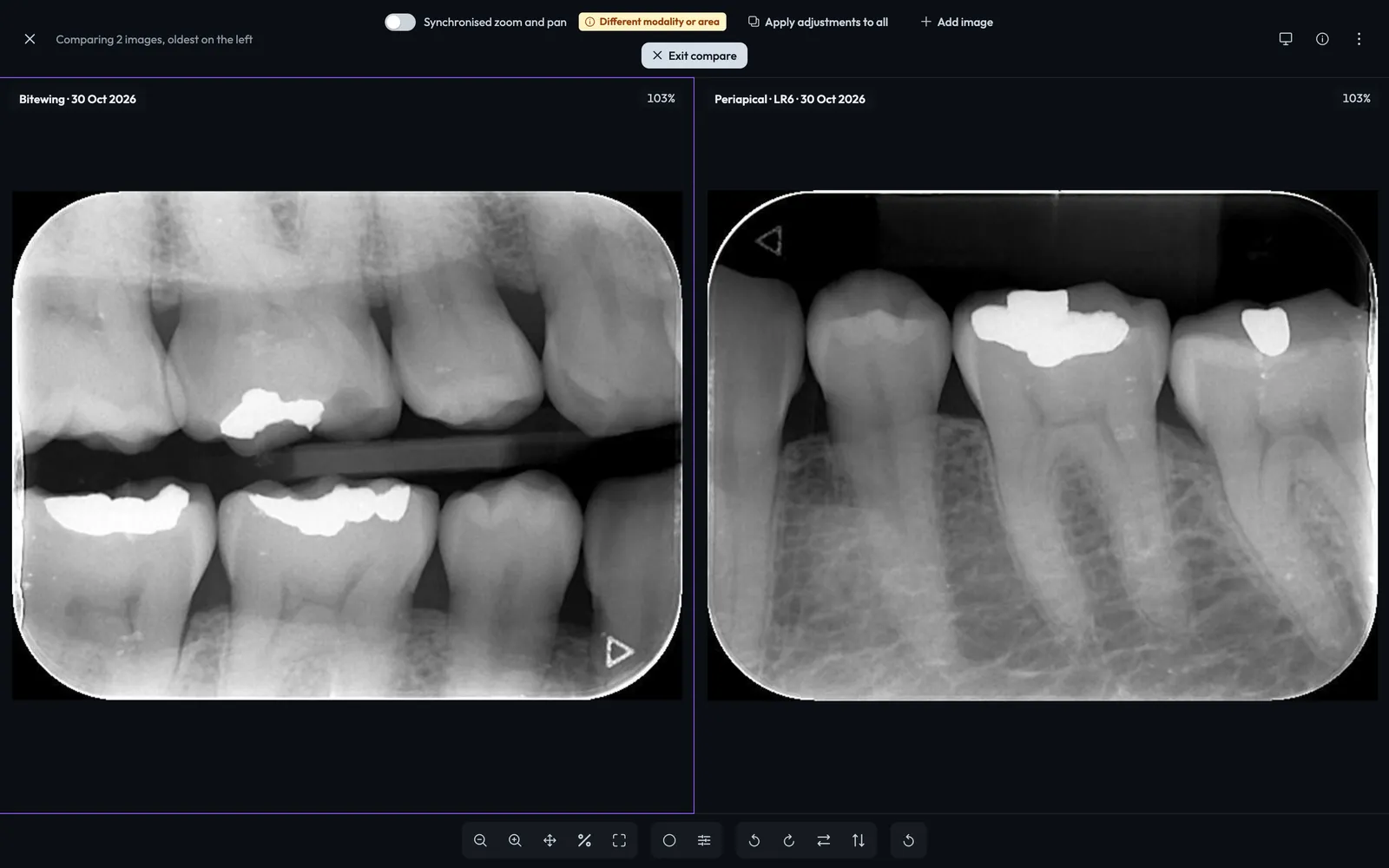
- 1.1Compare up to four filmsOldest on the left, with zoom and pan moving together on every film.
- 1.2Show the patientPress P to hide the clinical details and talk the patient through the film.
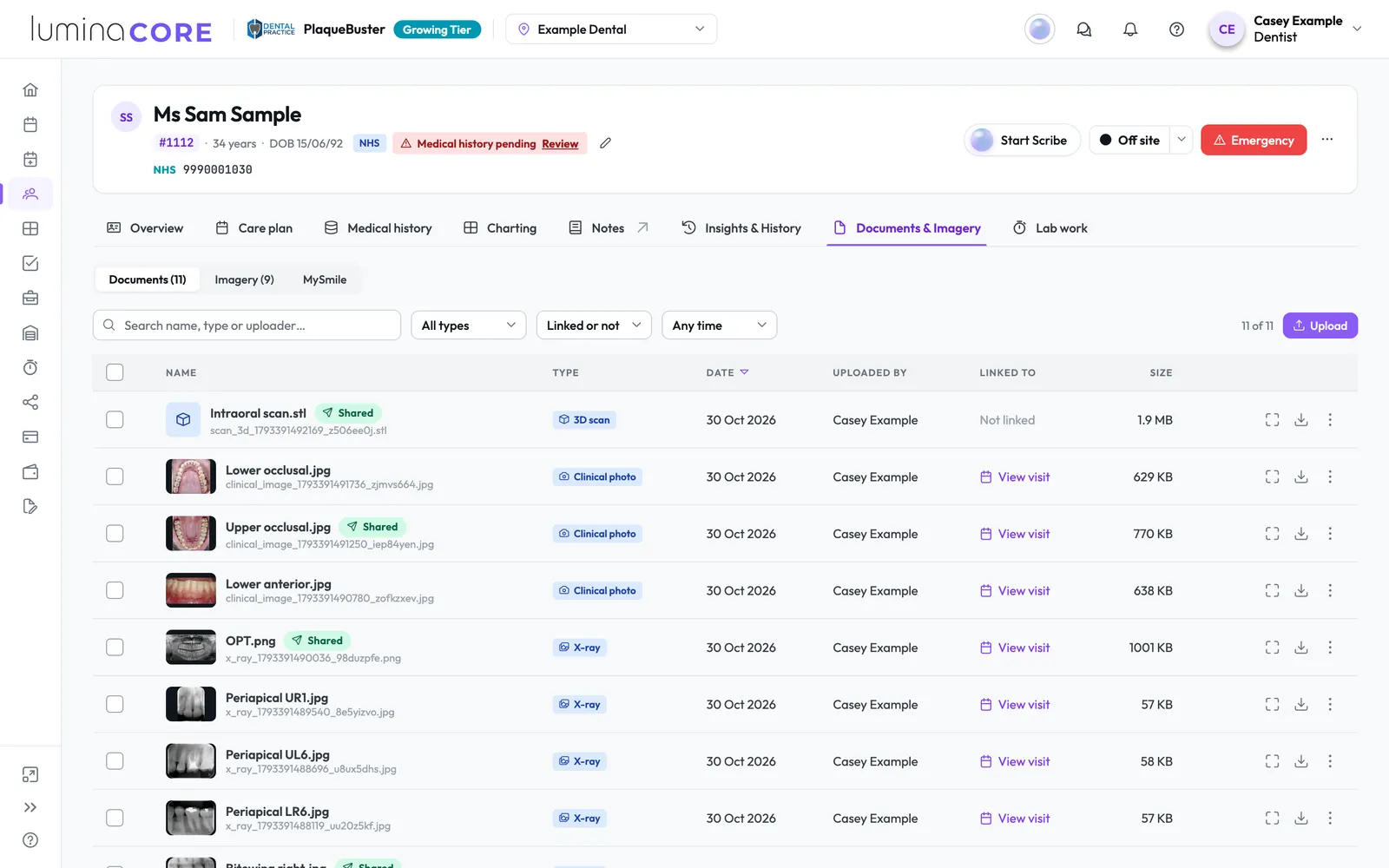
- 1.3Find the right film fastFilter by bitewing, periapical, OPT, photograph, tooth, visit or report status.
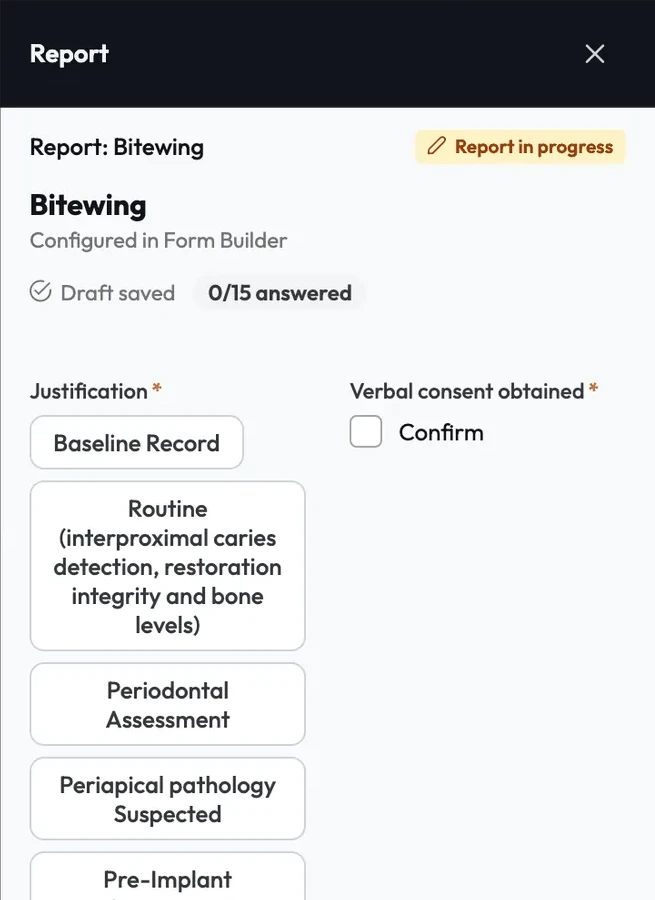
Structured radiograph reports, signed.
Clinicians fill your practice's report form beside the image, mark it complete and sign it, and a signed report cannot be edited.
- 2.1Status at a glanceNo report yet, Report in progress, Report complete or Report signed, with a filter for films not reported.
- 2.2Retakes markedFilms graded Not acceptable are easy to find for a retake.
- 2.3Clinical eyes onlyReceptionists and dental technicians never see image reports.
3D scans in the browser.
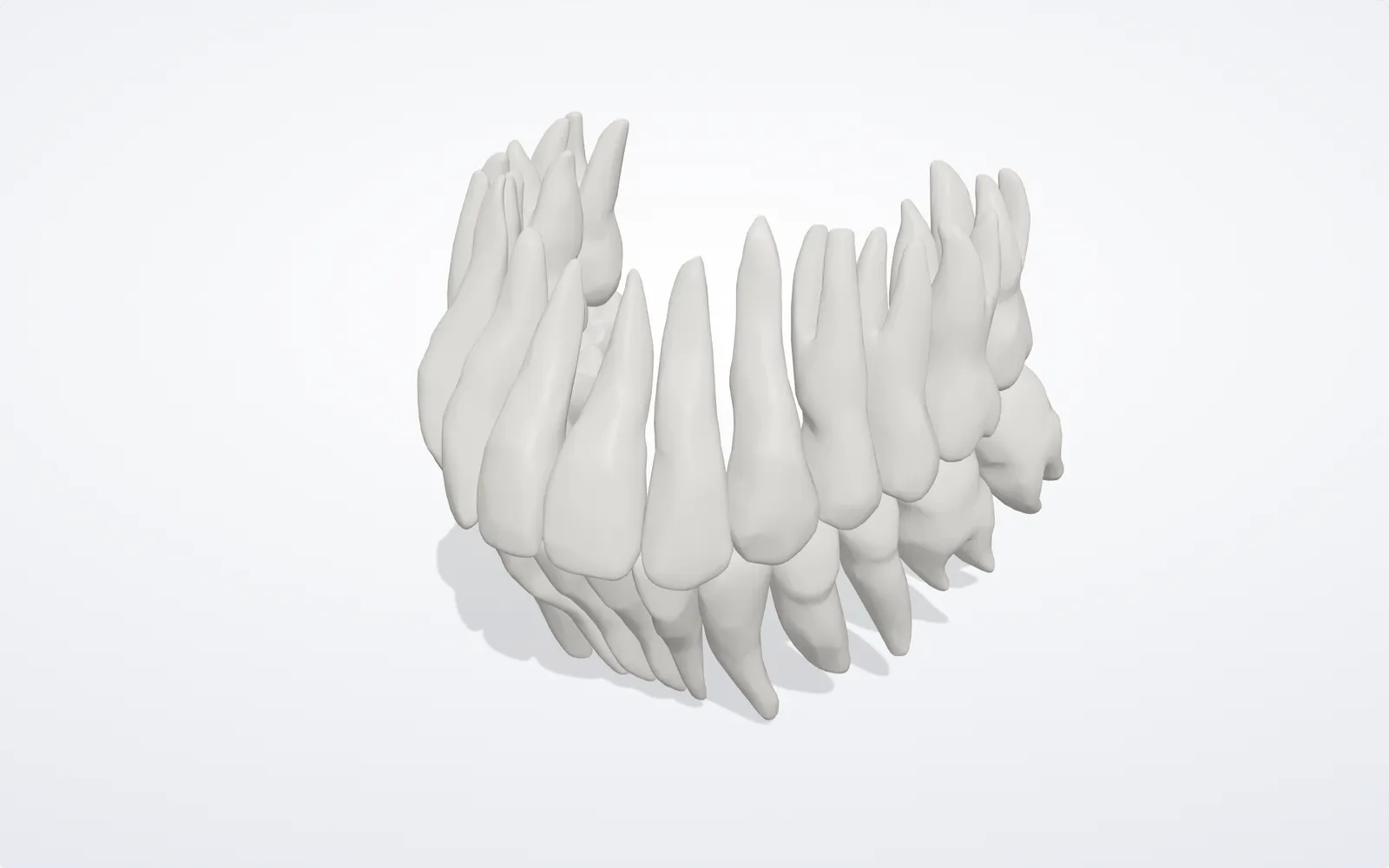
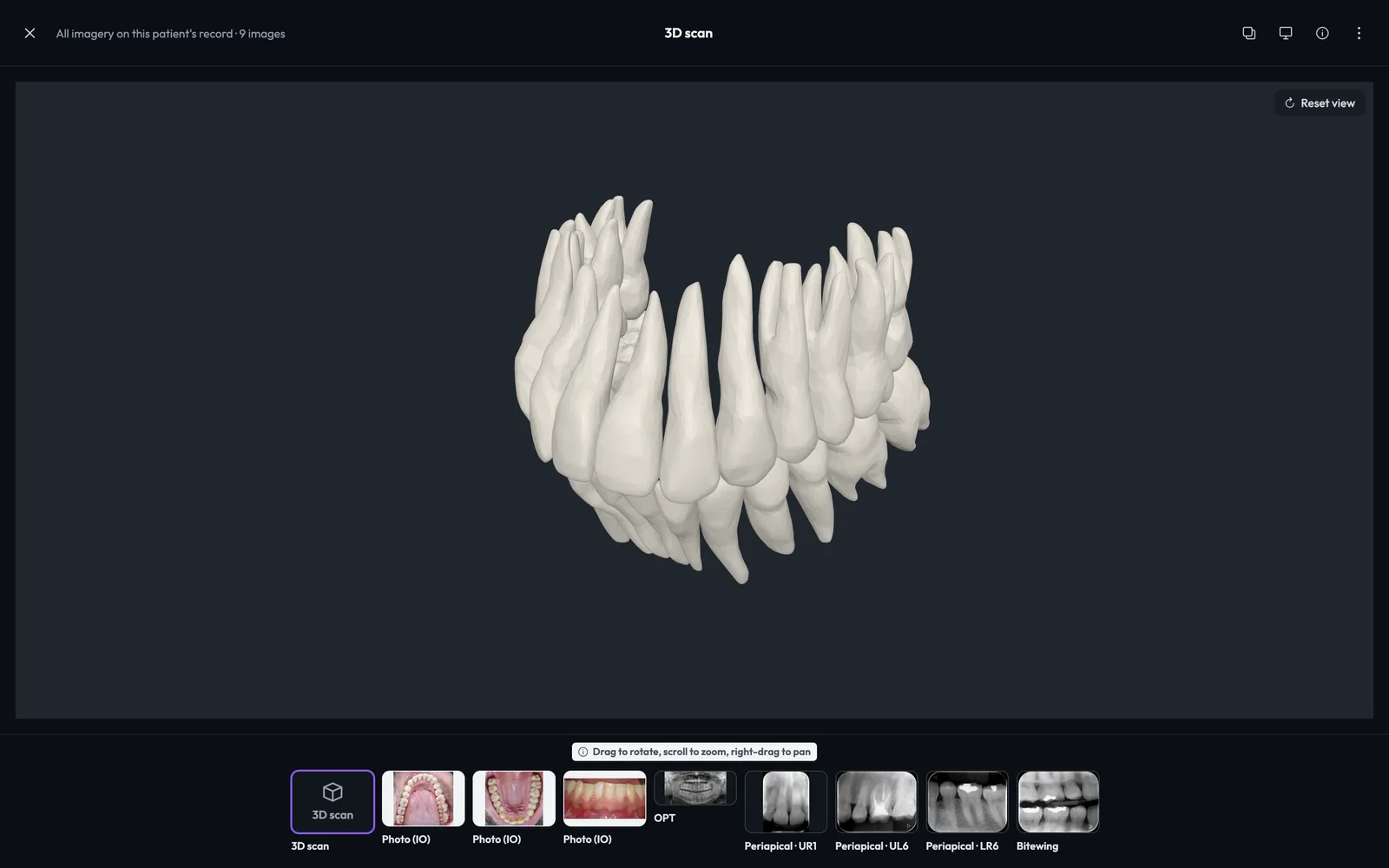
STL intraoral scans up to 50 MB open in a 3D viewer on the record, where you drag to rotate, scroll to zoom and right-drag to pan.
Shared with the patient when you choose.
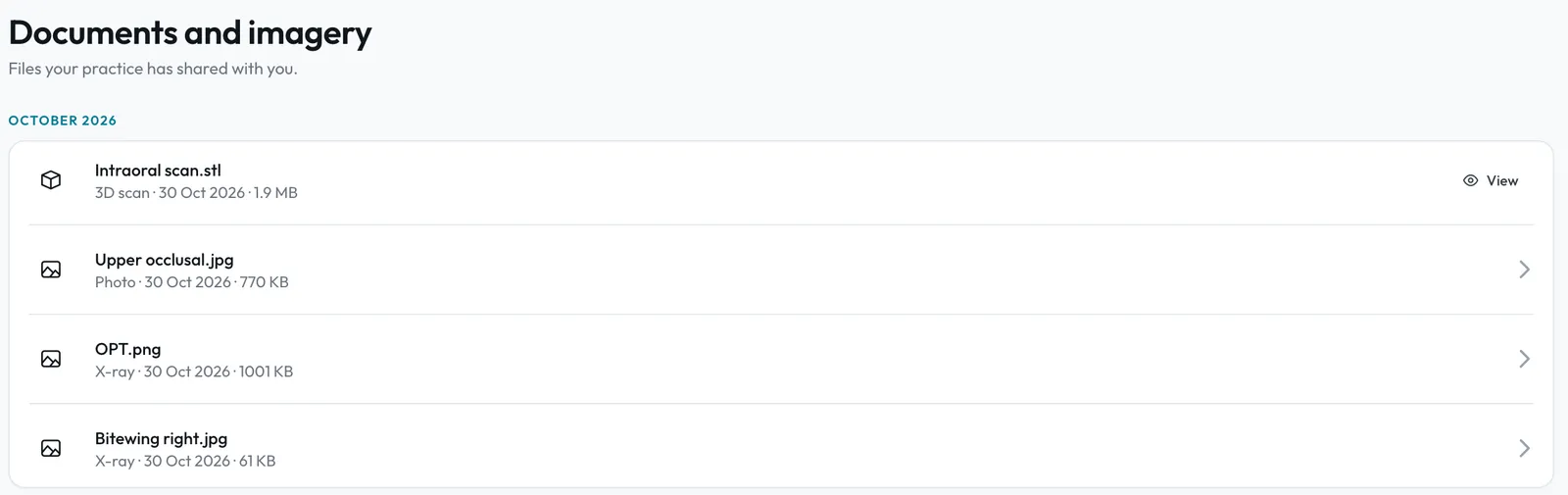
Exam X-rays and photos reach the patient's Portal and emailed report automatically, anything else is shared with one click, and patients turn and zoom their own 3D scans.
Used in exams, patient reports and letters.
Keep every film on the patient record.
Imaging, reports and the 3D viewer are part of Lumina Core on every plan.