Ask your practice anything.
Lumina Intelligence answers questions about your diary and practice, then prepares bookings, moves, cancellations, slot offers and tasks on a card for you to confirm.

Open it from Lumina Core or Lumina Admin.
Click the round Lumina Intelligence button in the Lumina Core top bar or diary, and the chat app opens on your practice with you already signed in.
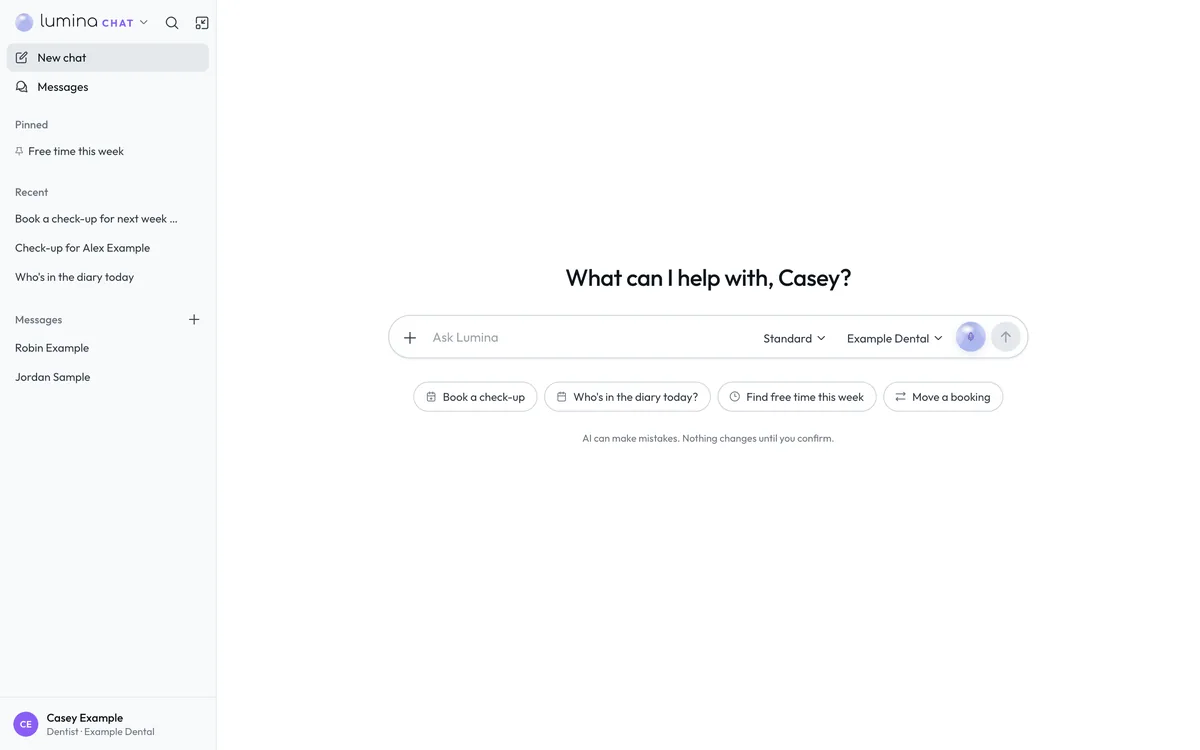
Run the diary from the chat.
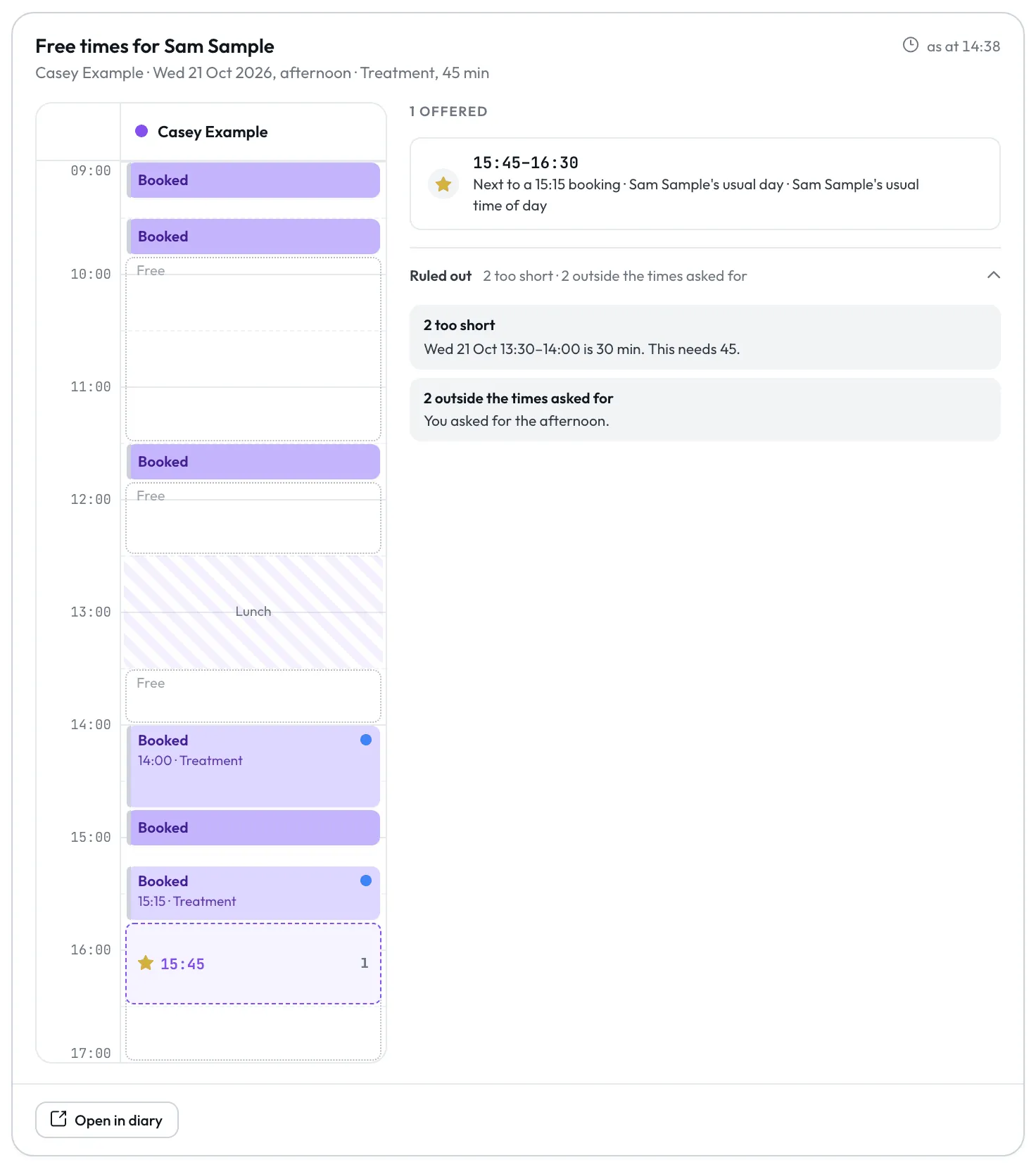
Lumina Intelligence draws the day's diary in the chat and offers times with a reason for each, and a card shows every change before it happens.
- 01
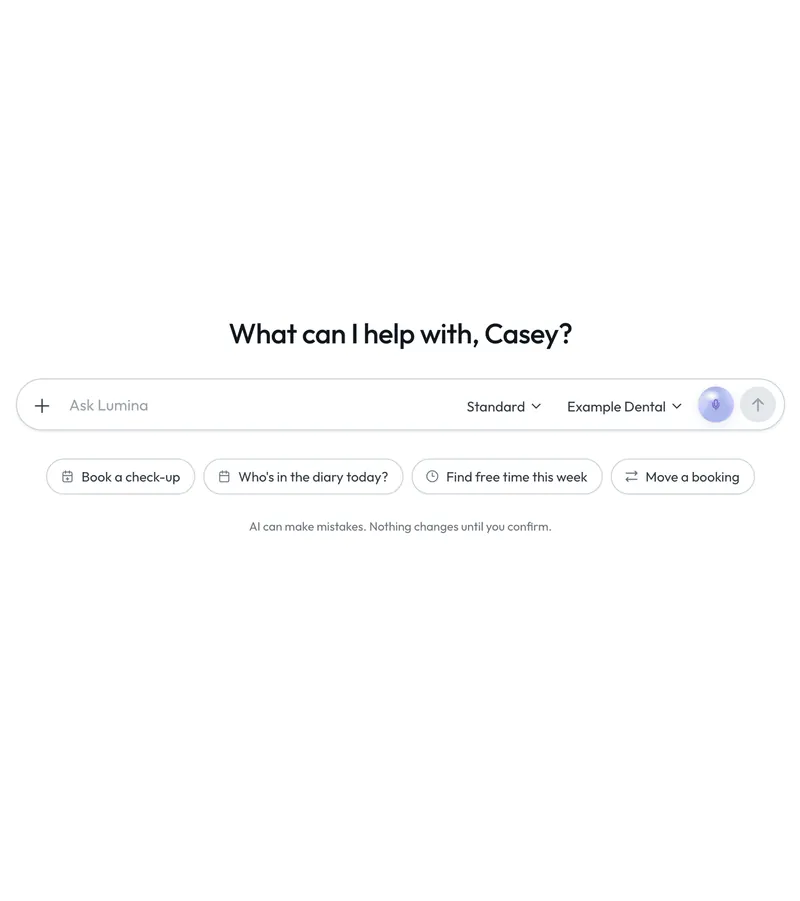
Ask in plain words
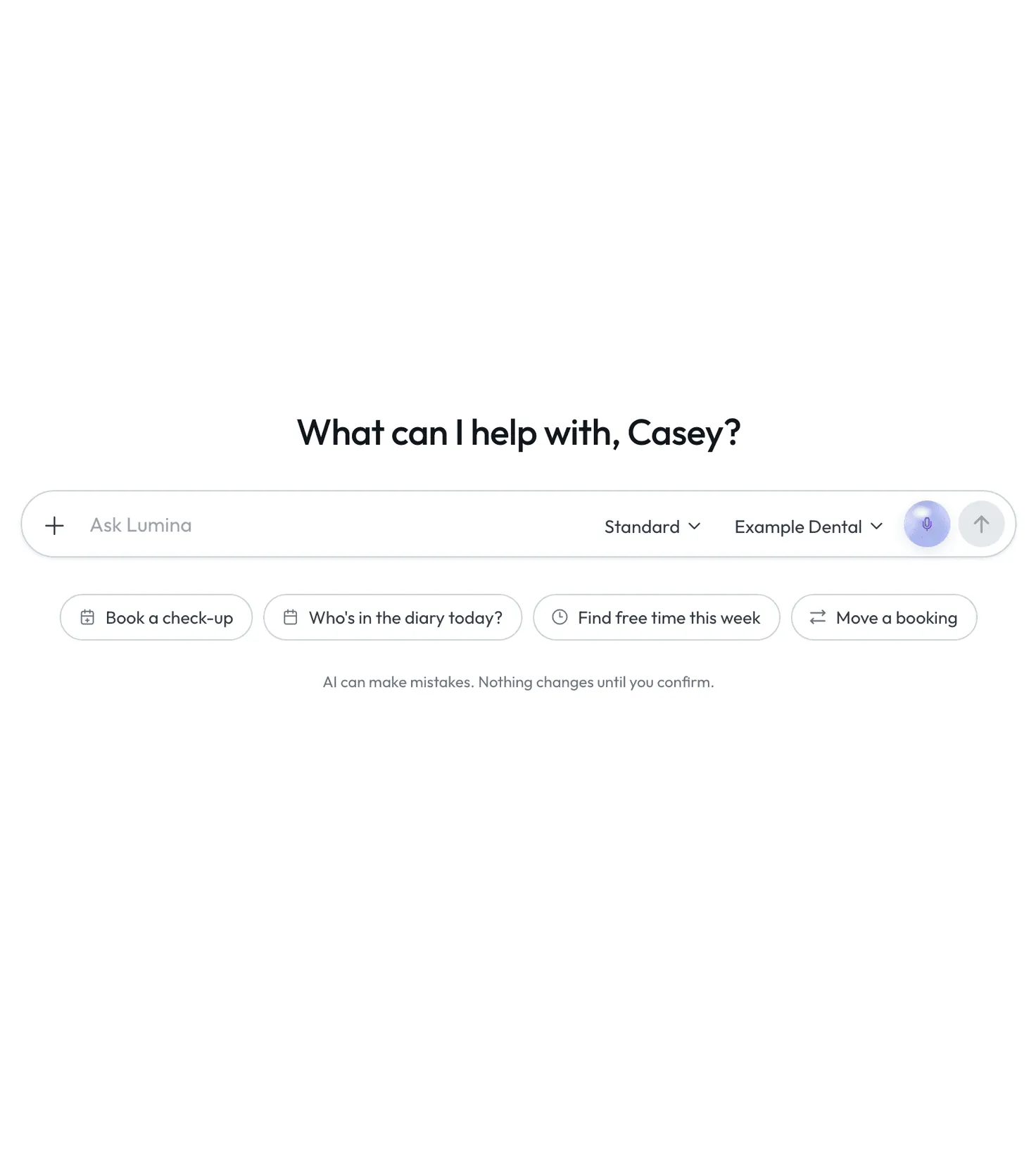
Type a question or pick one of the suggestions under the message box.
- 02
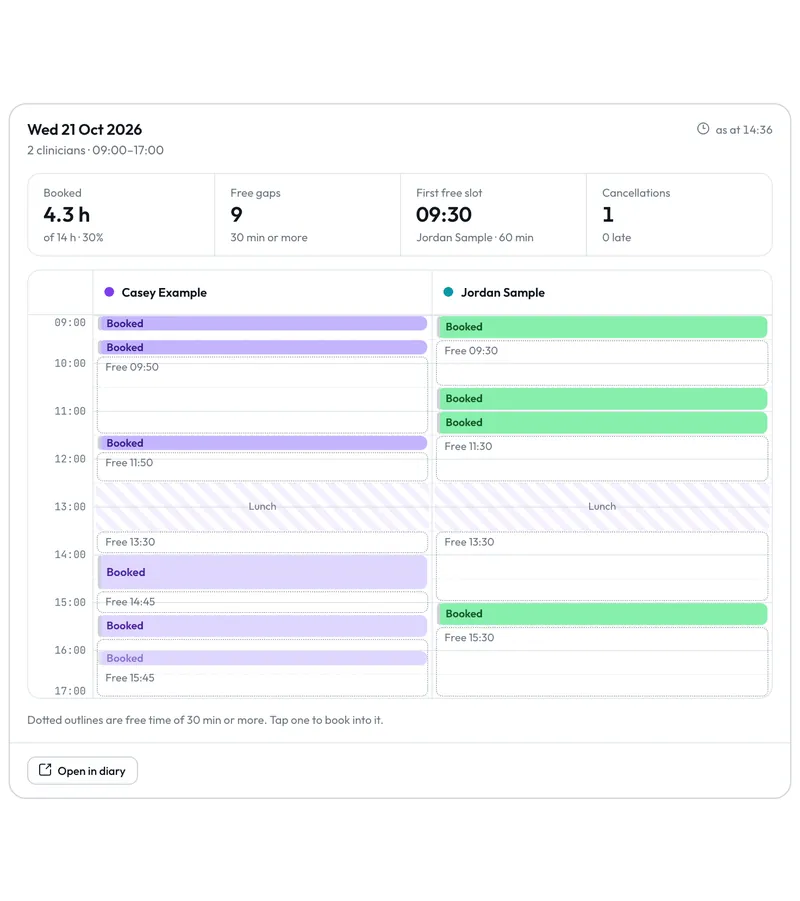
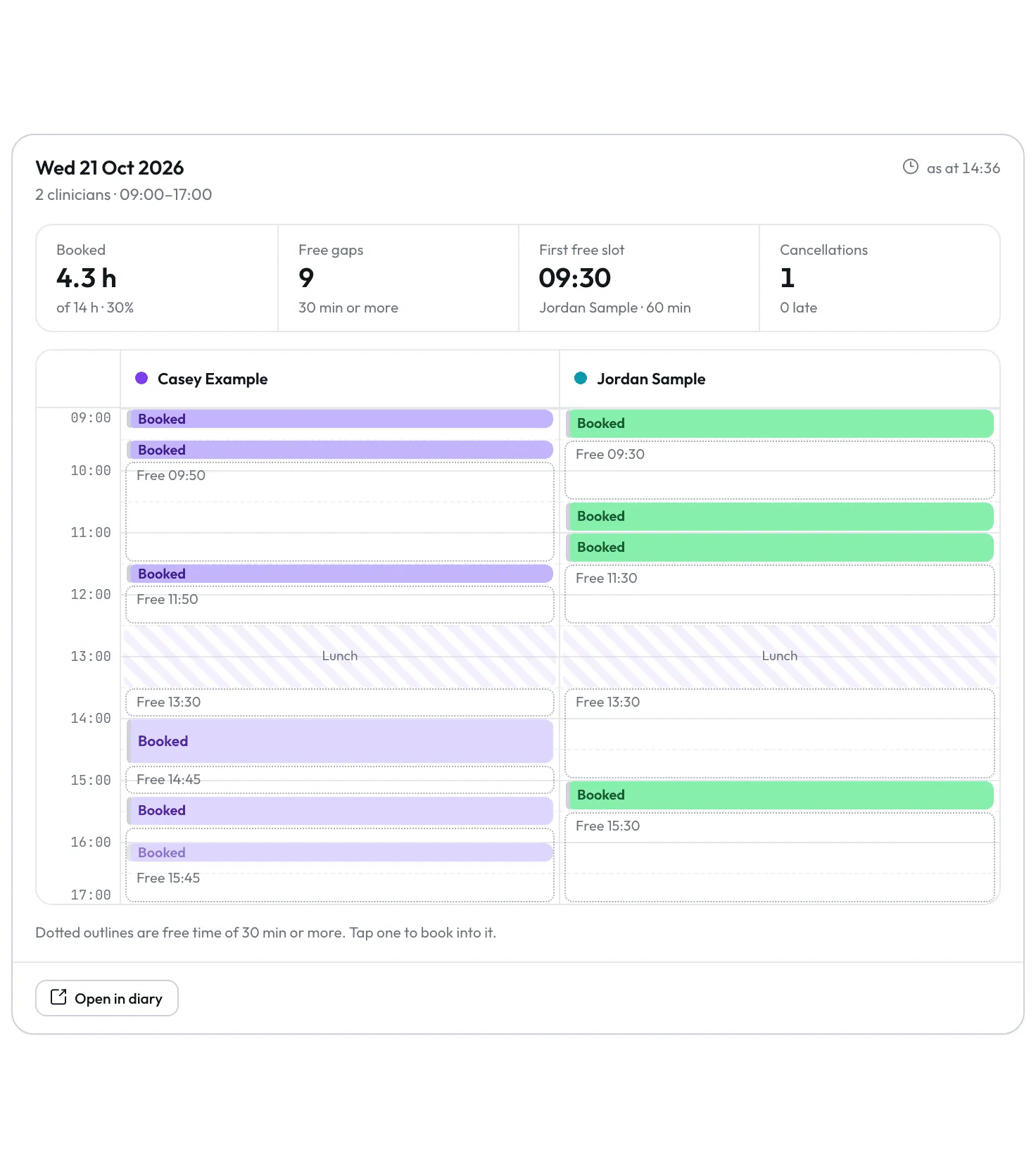
See the day
Booked hours, free gaps, the first free slot and cancellations sit above a column for each clinician.
- 03
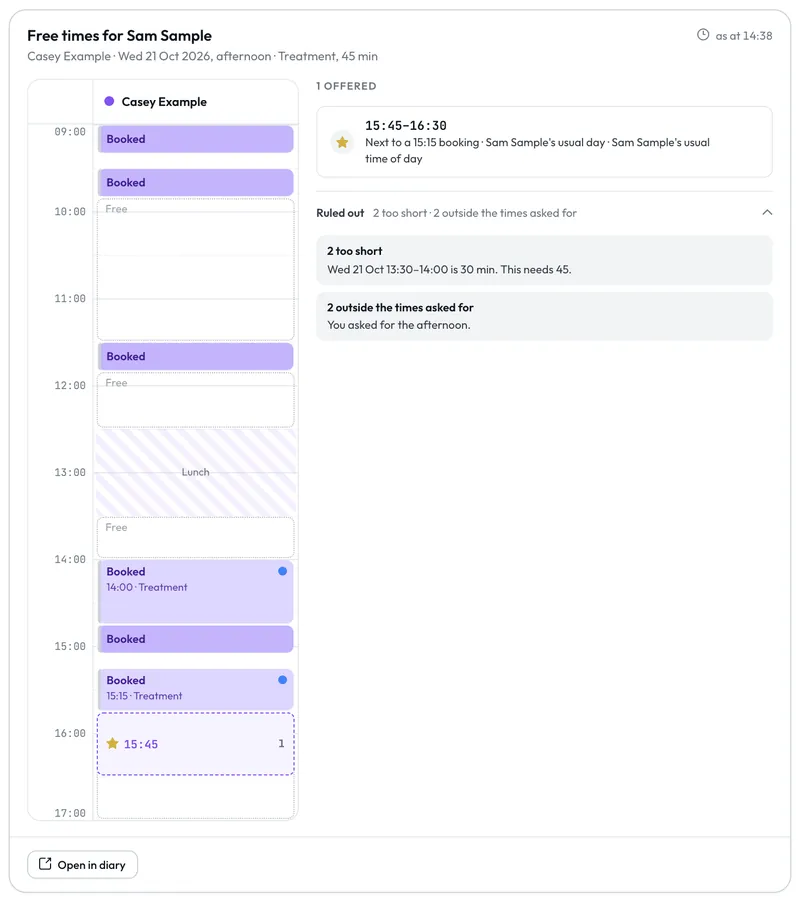
Pick a time
The best time is starred with its reason, and clicking any offered time books it.
- 04
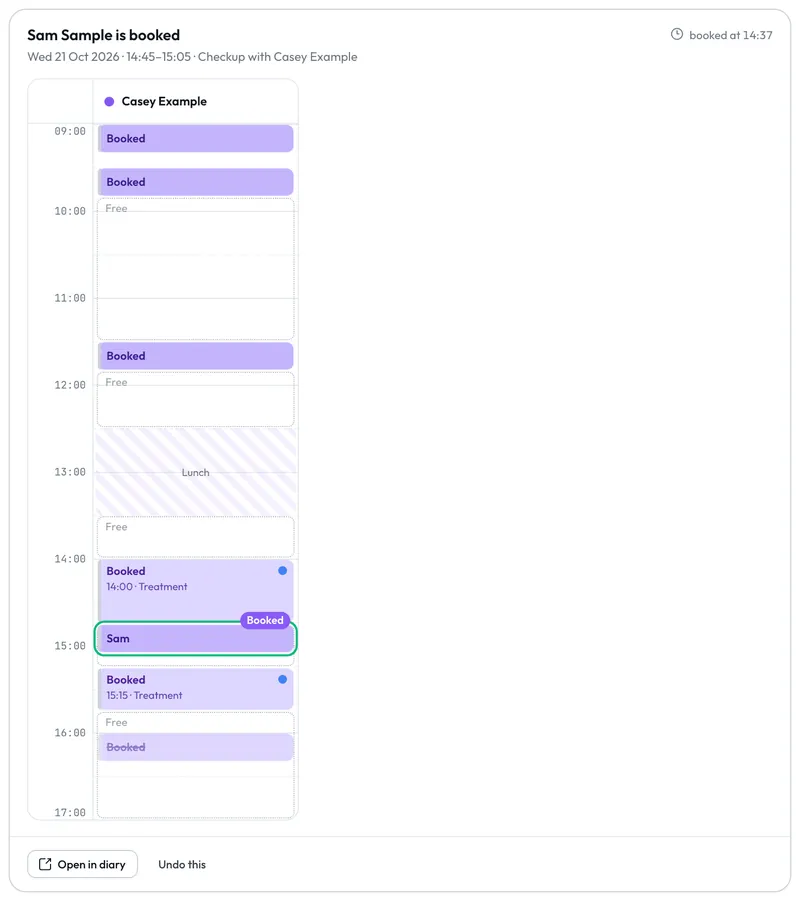
Check the result
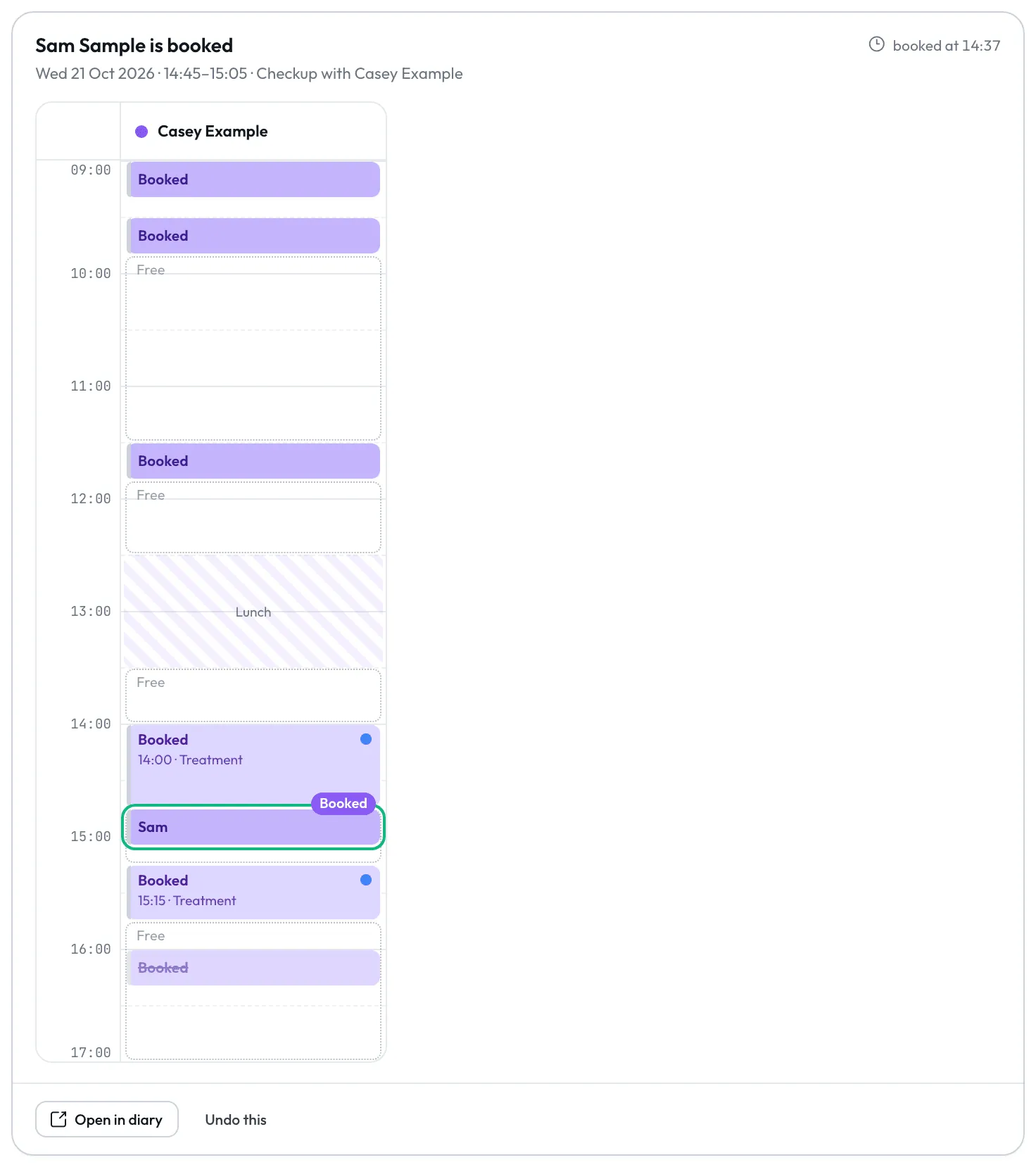
The new appointment is outlined in green, with Open in diary and Undo this below it.
- 05
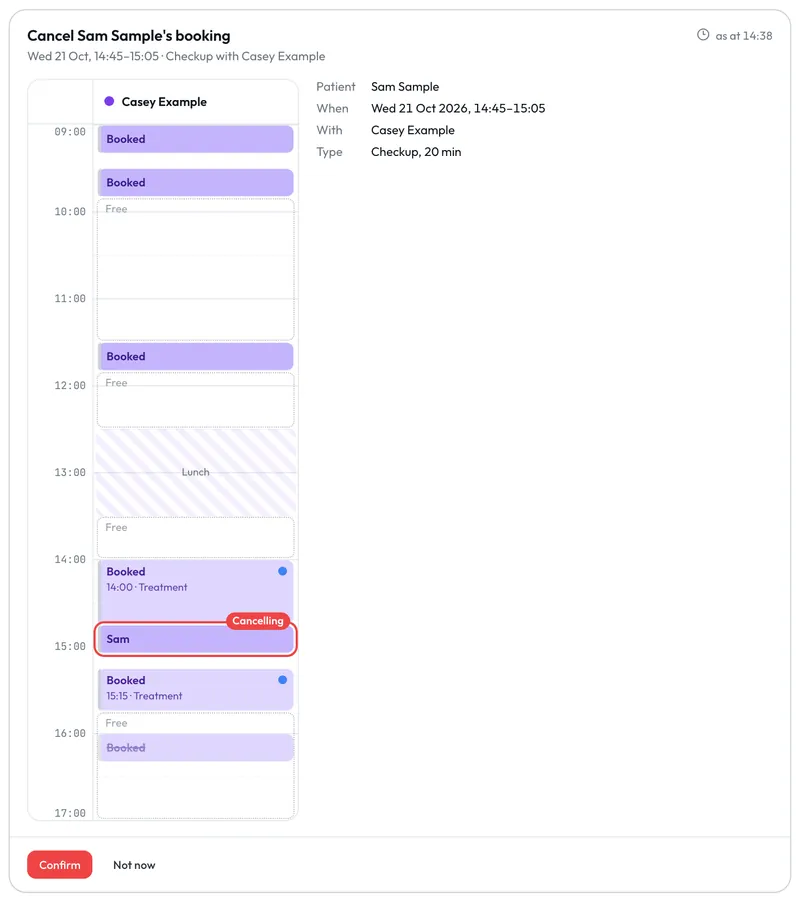
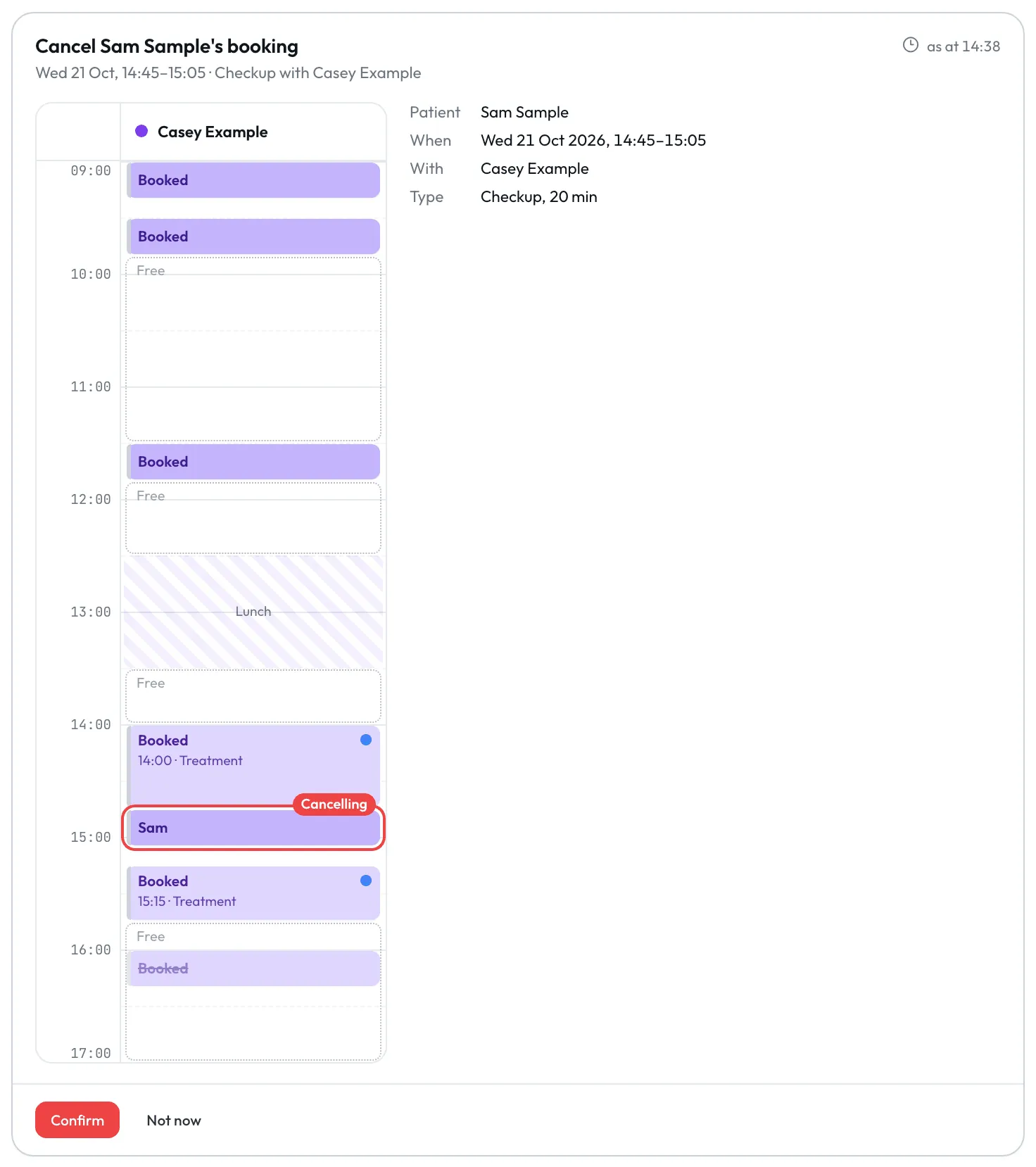
Confirm moves and cancels
The card shows the appointment in its day with the reason, and nothing changes until you press Confirm.
Fill the gaps in your diary from the chat.
Lumina Intelligence lists each open slot with the patients who could take it, and drafts offers with the hold and cost shown, sent only when you press Confirm and send.
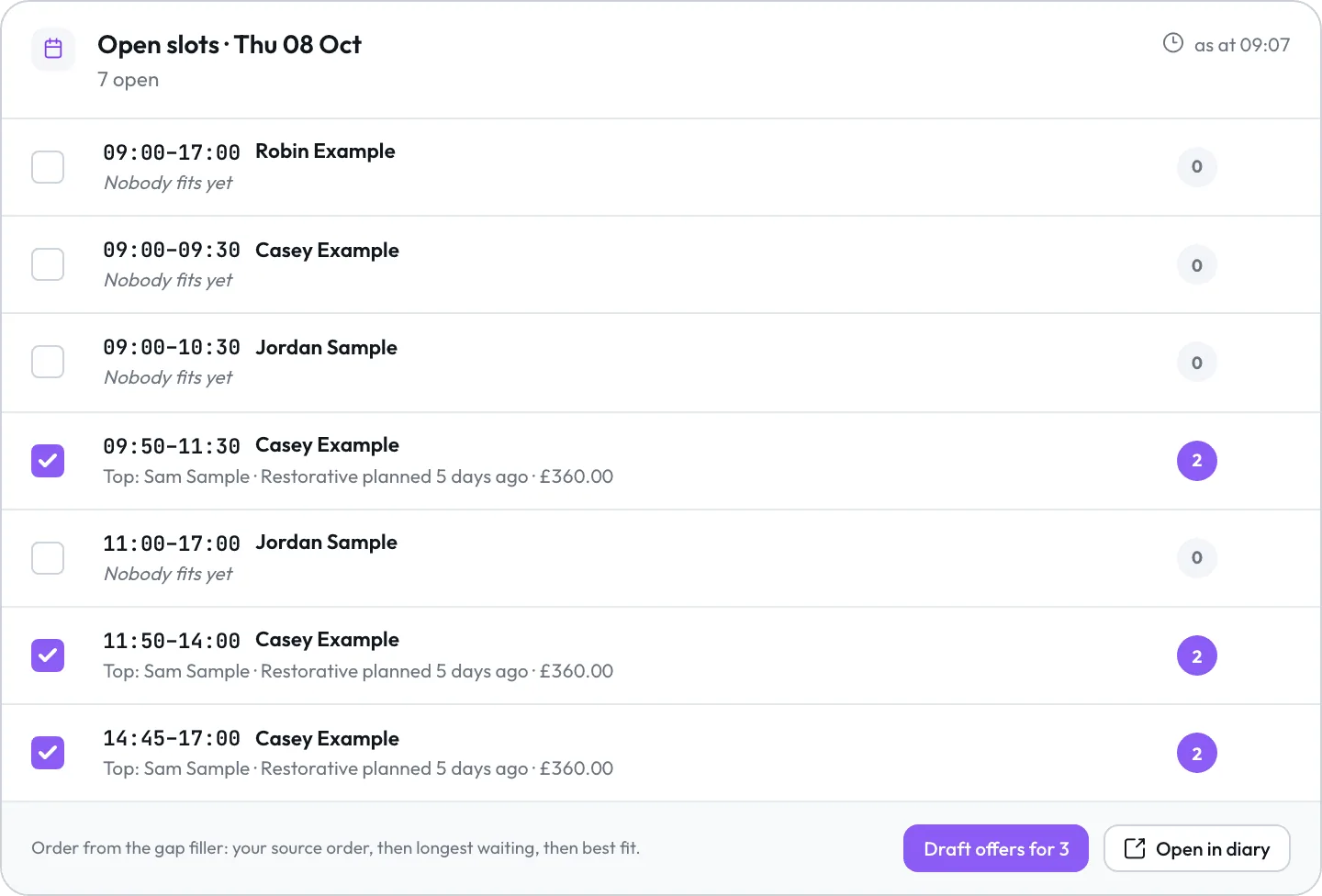
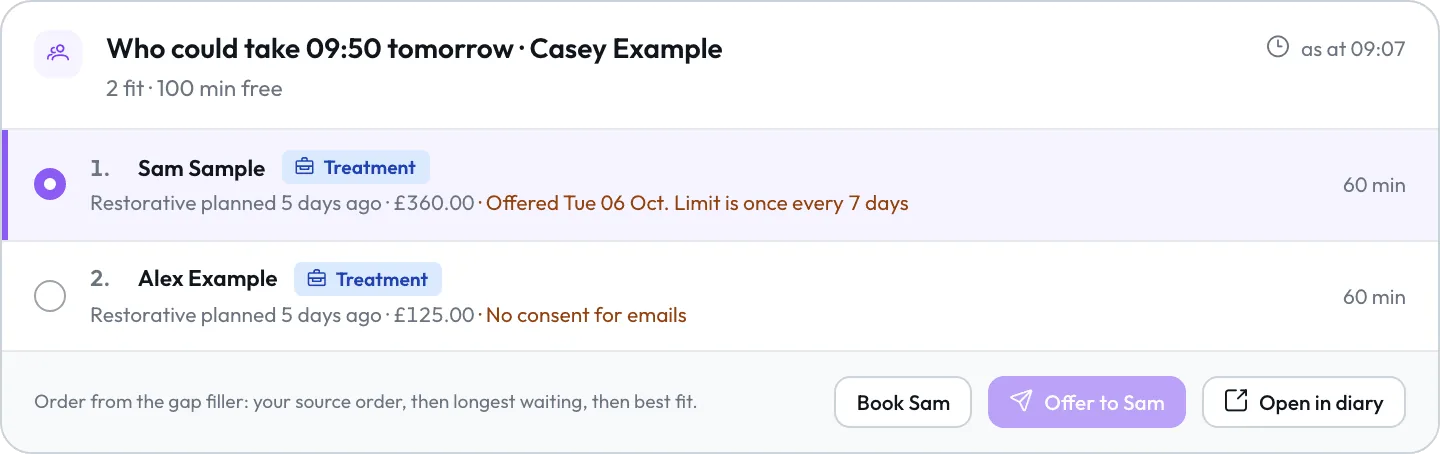
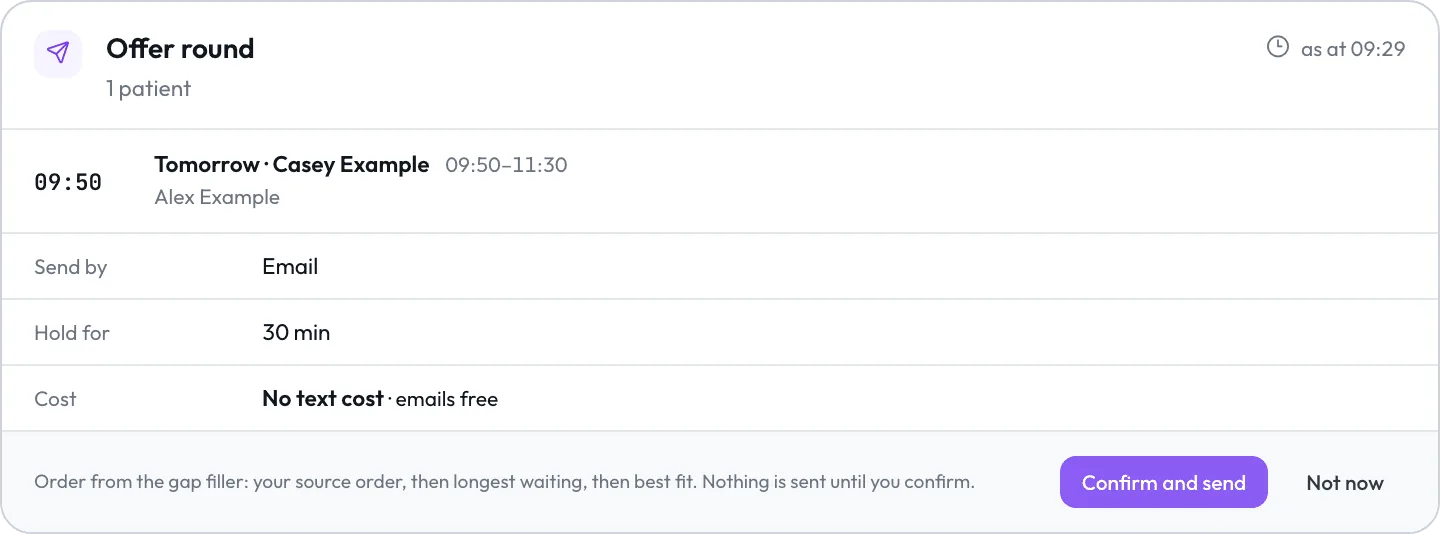
Patients are listed by your chosen sources first, then by how long they have waited and how well they fit.
Your gap filler settings in Lumina Admin decide who is suggested for each slot, and every offer follows the same rules as the Gap filler page in Lumina Core.
Nothing changes until you confirm.
Administrators can switch Lumina Intelligence off for the whole organisation in Lumina Admin. How Lumina uses AI
Ask how to do something in Lumina.
Lumina Intelligence answers from the Lumina help guides with a link to the section it used, and raises a support ticket for you to confirm.
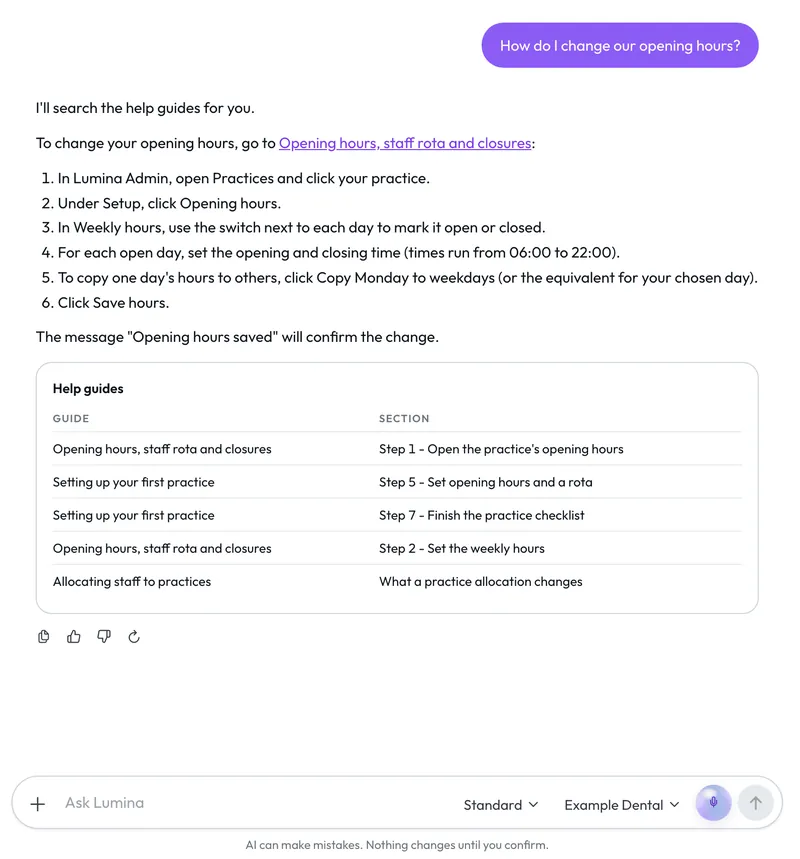
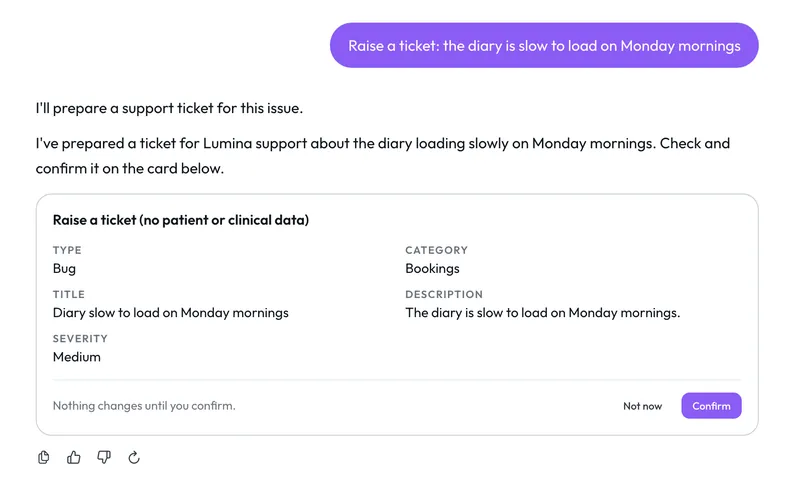
Ask “Any news on my tickets?” to see the replies and answer them from the chat.
Ask in your own words.
Type or dictate your question, and mention people with @ so it acts on the right person.
- How is today looking?
- Find free time this week
- Book a check-up for @Jane Smith with @Casey Example on Thursday afternoon
- Move @Jane Smith's next appointment to next week
- Fill my gaps tomorrow
- Who could take Dr Casey Example's 2pm?
- Offer Thursday's hygiene gaps to overdue recalls
- How are my offers going?
- How did gap filling do this month?
- What does our infection control policy say about sharps injuries?
- Which complaints are due this week?
- Put @Alex Example on the earlier list, mornings only
- Import this photo of our price list
- Remind me tomorrow at 2pm to call the lab
- Create a task for @Ben Davies to call the lab
- How do I change our opening hours?
- Which policy reviews are overdue?
- Any news on my tickets?
Everyone at the practice can use it.
Each answer is limited by the person's role, so a receptionist cannot see management figures and pricing changes stay with managers.
Answer depth
Choose a quicker or a more thorough answer next to the message box, up to the level your administrator sets in Lumina Admin.
A daily AI allowance
Every AI feature shares one allowance that resets at midnight, and extra usage runs only if an administrator sets it up.
Reminders and tasks
Ask for a reminder at a set time or a task for a colleague, then confirm the card.
Policies and complaints
It answers from your published policies, naming the version and section, and logs a complaint from what you tell it once you confirm.
Book a demo and ask it yourself.
Lumina Intelligence opens from Lumina Core and Lumina Admin, and works on the same records with the same permissions.